How to Get Important Course Updates
Course Notifications
Brightspace can send you important course notifications on the Notifications Dashboard, by email, and through text messaging. Please note that you have to OPT-IN to receive notifications from Brightspace on your email or phone. You get to choose the method and frequency of notifications that you receive in Brightspace.
Verify that your email address and/or mobile number are correct under the contact methods section. Select “Change your email settings” to change the email the notifications will be sent to. Select “Register your mobile” to receive notifications through your mobile device.
How to customize your notification preferences
1) Login to Brightspace
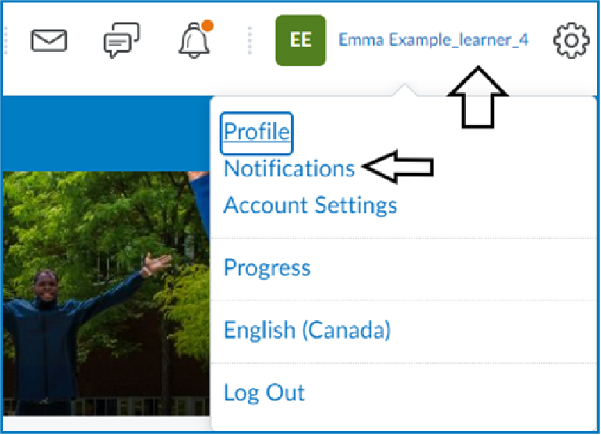
After logging into Brightspace, click your name in the upper right-hand corner.
2) Select Notifications
This will take you to the Notifications page.
3) Instant Notifications
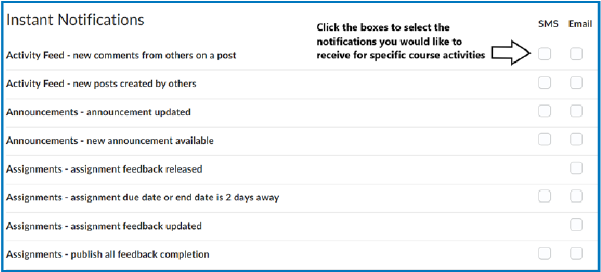
You can have Brightspace send instant notifications via email and/or text messages to your mobile device.
4) Select When You Want Your Notification
Once you have confirmed your contact information, under Instant Notifications, you can select when you would like to receive a notification from the list by placing a checkmark in the box beside the preferred method of notification – Email or SMS (short message service/text message to your phone)
5) Customize Your Notifications
Under Customize Notifications, you can select from the following:
- Include my grade value in notifications (which will allow you to see your grade in a notification rather than just alerting you that a grade is available)
- Allow future courses to send me notifications (courses that have yet to start but you are enrolled in for a future term)
6) Set Notifications by Course
Under Exclude Some Courses, click Manage My Course Exclusions to set which courses you do not wish to receive notifications from.
7) Be Sure to Save Your Notification Settings
Click Save to save your notification settings.