Brightspace Courses and Accessing Course Content
Accessing your course sites on Brightspace
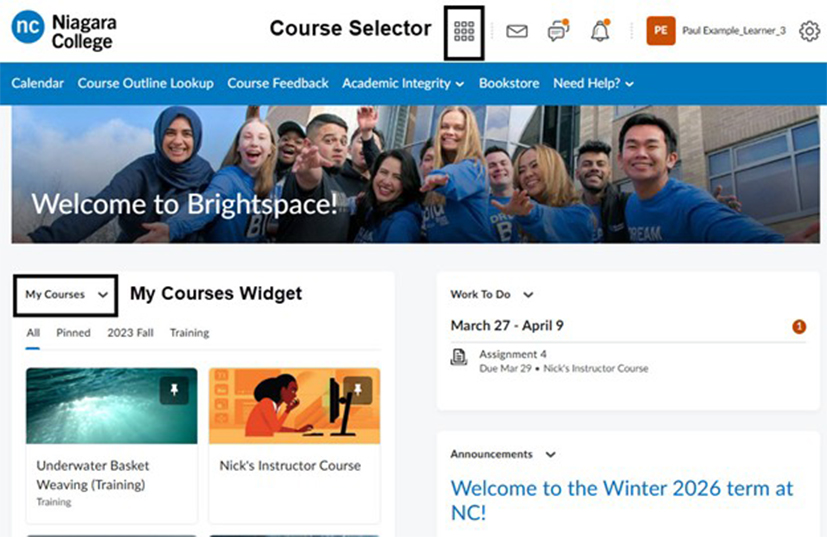
On the Brightspace landing page, you can access your courses through the course selector tool or the My Courses widget. To access each unique course site, click on the individual course.
Important:
Brightspace course sites will only be visible to you once the faculty has made them available for viewing. If you do not see a course site on the day that your first class is scheduled to take place, email your instructor directly to ask whether they have made the course available.
Typical Brightspace Course Features
There are a number of features common to most course sites in Brightspace. Let’s go through a few of them to help you feel more comfortable in this environment.
Course Homepage
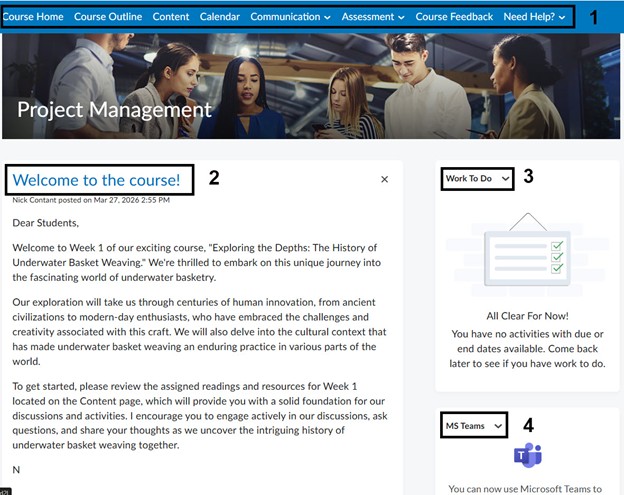
Image below showcases the layout of the college’s default Brightspace course homepage.
1) Course Navbar:
The course navbar is the main navigational tool for you as a student in a course.
2) Announcements:
The Announcement widget will display on your course homepage and include any announcements posted by your instructor in order from newest to oldest.
3) Work to Do:
The work to do widget will display work from the course that with due dates in the near feature or ones that are overdue.
4) MS Teams Widget:
If you have an online component to your course, you can use the MS Teams widget to access the Teams course site for your course. Note: if your class is delivered in-person, you likely will not see a Teams site created for your course in this widget.
Course Navbar

1) Course Home:
Clicking course home on the navbar will take you back to the course homepage from any location in the Brightspace course.
2) Course Outline:
Clicking on course outline will bring you to your course’s outline, from the Course Outline Tool, which describes the specific skills that you need to acquire in a course to be successful. In the Outline, these are referred to as course outcomes, course objectives, and essential employability skills and your professor will structure their teaching and evaluations to help you develop them.
Course outlines also include lots of other important information, such as a course description, any pre- and co-requisites, an overview of evaluation types, a list of required textbooks or resources, and more.
3) Content:
Content is where you will find course content including the TLP, class and content materials, and more.
4) Calendar:
You can access a course calendar from the navbar that will display upcoming tasks, assignments, and quizzes populated in the course.
5) Communication:
This drop-down menu will allow you to access an announcements page, the Classlist Tool for the course, groups (if they have been set up in your course), discussion, and attendance.
6) Assessment:
Under assessments, you can access all assignments for the courses, quizzes (where you’ll find quizzes and tests for the course), your grades, and you can view your class progress.
7) Course Feedback:
You can use this link to access the course feedback survey when it comes available. This link will be accessible during the last two weeks of the course when the surveys are open and will remain live until 3 days after the course ends.
8) Need Help:
From here, you can access links to the NC LauNCh guide, ITS, Health, Wellness, & Accessibility, ncLibraries, and additional Brightspace help.
Accessing Course Content
There are a number of features common to most course sites in Brightspace. Let’s go through a few of them to help you feel more comfortable in this environment.
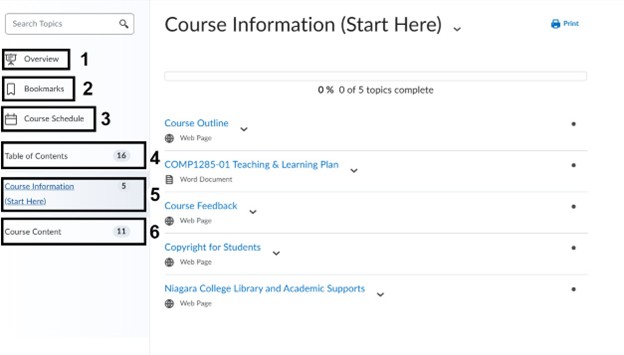
1) Overview:
The Overview feature in Brightspace Content provides a customizable landing page that introduces learners to the course or module by highlighting key information, context, and expectations before they engage with the materials.
2) Bookmarks:
Topics you bookmark appear in a list on the Bookmarks page. You will see a number beside the Bookmarks link that indicates how many bookmarks you have.
3) Course Schedule:
Find course material due dates, start dates, end dates, overdue course activities and other course events for the next seven days.
4) Table of Contents:
Listing of all modules available in your course. The number beside the Table of Contents indicates the content items available to you.
5) Course Information (Start Here):
The Course Outline and Teaching and Learning Plan (TLP) are typically found here.
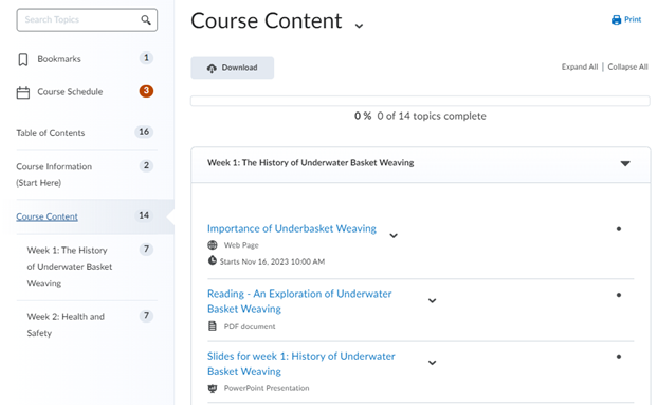
6) Course Content:
Here is where you’ll find all the course documents for your particular course. Your instructors might organize the content by weekly modules. Your instructors can add different types of content to your courses to support your learning including readings, documents, slides, images, videos and web links.
Course Content
What If I’m Missing Features of Content?
Remember that instructors can limit which content items you see based on date, time, individual users, course groups, and your performance on graded items. Ask your instructor about content that you think you should be able to see but cannot.