Completing Assignments and Quizzes
Assignments
As you progress through your course, you’ll complete different types of assignments: case studies, research papers, presentations, creative writing, lab reports, and more.
In Brightspace, you can easily upload your files and receive files back, along with your grade and feedback. Your instructor controls the date when assignments are ready for you to access and when they are due. Make sure you read your Teaching & Learning Plan (TLP) thoroughly and make note of all important dates so you do not miss anything. Adding them to your calendar will help you stack on track.
How to access and submit assignments
Quizzes and Tests
Your instructors may use tests and quizzes to assess your mastery of course content and learning objectives. You can access a quiz or test when it has been deployed by your instructor from the drop-down menu in your course navbar by selecting quizzes under Assessment. Your instructors might also link to a quiz or test in a content module. When the instructor lets you know that a quiz/test is available, and where to find it, enter that area of the course and click on the test link to start it.
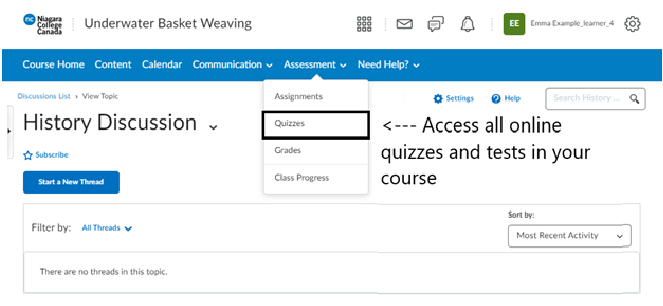
In Brightspace, the Quizzes tool is used for all quizzes and tests. Generally, a test will be longer than a quiz but it will still be accessed via the quizzes tool from the assessments drop-down menu in your course navbar.
How to access and complete tests and quizzes
BrightspaceTest Taking Tips
- Start your test as soon as you can during the test availability window. If your instructor makes a test available for several hours or several days, plan to take the test as early as possible. This way, if you encounter any technical issues, you will have time to contact your professor and get technical support.
- Check your internet connection before beginning the test. Ideally, your connection will be strong and stable. A wired connection is usually more reliable than a wireless connection.
- Close as many other windows on your device as possible and, if possible, minimize internet traffic by turning off streaming services like Netflix and taking your mobile devices off wi-fi.
- Read all of the test instructions carefully before beginning. The test instructions may include important details about the test and its settings that will be helpful for you to know about before you start.
- You may find it helpful to make sure that you’re clear on how each specific test is set up before starting it. Tests can have a variety of settings chosen by your professor that control how they’re displayed, how long you have to access them, and whether functions like the timer and auto-submit are used. Because of this, your tests may look and function differently in different courses.
- Once you’re in the test, don’t refresh the test page, close the browser window, or use the browser’s back button. This may prematurely end your test.
- If your test prevents backtracking to previous questions, confirm each answer before saving it.
For a more detailed list of recommended test taking tips please visit the Brightspace Test Taking Tips page.
Grading
How do I see feedback/grading information?
To access feedback and grade information, select the Grades option under the Assessments drop-down menu in your course navbar.
You may see your score immediately after you complete the test if all questions are auto-graded and your instructor releases this information. Your instructor may choose a date in the future to release quiz/test scores while your classmates take the test.
Turnitin: Plagiarism Prevention Tool
Turnitin is a plagiarism prevention tool that allows your professor to check the originality of any text that you submit as part of an assignment or test. Turnitin automatically conducts the check by comparing your assignment against databases of webpages, published books and articles, and other assignment submissions, including those from peers in your current course and submissions from past students. Make sure to properly cite your sources in everything you submit and check with your professor if you’re unclear about anything!