How-to: Get your T2202 Tax Form
Students have the ability to submit their social insurance number (SIN) at anytime. If it is not submitted before the deadline provided by Niagara College each tax year, the T2202 will show zeros in that field. Students can still submit this copy to complete their income tax return.
1) Log in to MyNC.
Can’t log in?
If you have not logged into your MyNC account in the past 90 days but have attended within the past two years, you still have access to MyNC. You will need to reset your password to login.
For information on how to reset your password – see: https://its.niagaracollege.ca/password-management/.
2) Go to the Dashboard.
Once you are logged into MyNC, click on the Dashboard icon.
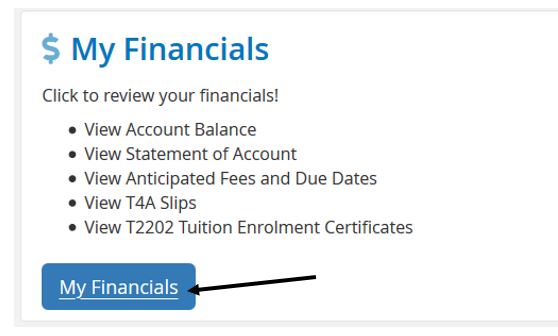
3) Click the blue “My Financials” button.
- Find the “My Financials” section.
- Click the blue “My Financials” button.
4) Scroll down to the “Tax Information” section.
Use the dropdown to select the year required.

5) A new window will appear indicating that your form is being generated.
A new window will open in your browser while your form is generated. Please be patient while it generates your form.
Note: You must allow pop-ups in your browser in order to see the window.

6) Your form will be automatically downloaded.
Once generated you will automatically download the T2202 tax form.
If your T2022 does not automatically download, click the “Click here if the download hasn’t started yet” link in the generation window.
