Download Digital Credentials
MyCreds™ Digital Credential
Once the credential upload has occurred (after Fall and Spring Convocation) you will receive notification through an email from the MyCreds platform. The email will be sent to your home email address, as listed on your MyNC account.
In order to ensure you receive email notifications from MyCreds, please check your spam/junk folder for any emails that may have been inadvertently filtered. To avoid issues in the future, you may want to mark MyCreds emails as “Not Spam” or move them into your primary inbox.
1) Register with MyCreds
If you are not yet registered, you will receive an email requesting you to register your account.

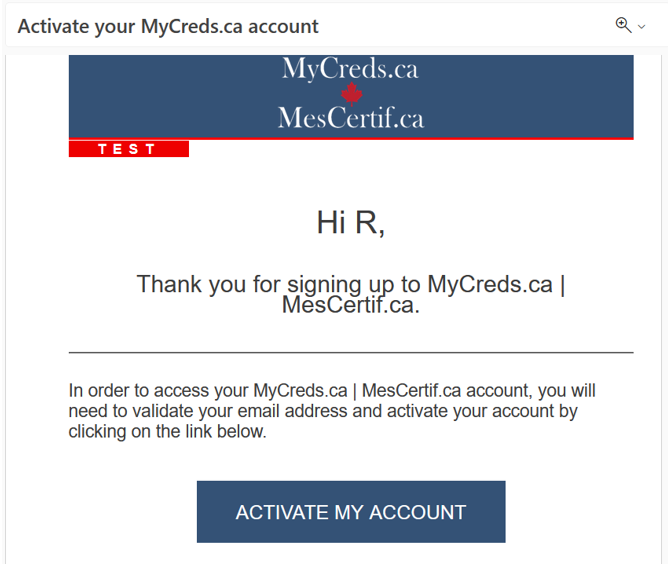
2) Activate your MyCreds Account
Once registered, you will receive another email from MyCreds to activate your account.
3) Already have a MyCreds Account?
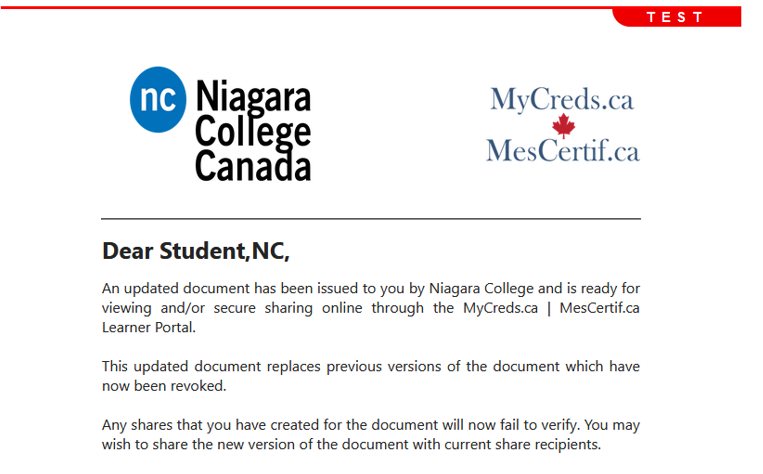
If you are already registered with MyCreds, you will be notified by email that there is a new document or an updated document in MyCreds from Niagara College.
4) Access your documents on the MyCreds Platform.
All your official documents will be stored and accessible on the MyCreds platform.
