How-to: Select a Timetable Block
1) Log in to MyNC.
2) Go to the Dashboard.
Once you are logged into MyNC, click on the Dashboard icon.
3) Navigate to “Select/Manage Timetable (NICOLE)”.
- Find the “My Student Record” section.
- Click the “Manage Registration” link.
- Click the “Select/Manage Timetable (NICOLE)” link.
- Read and accept the Important Notice from the Enrolment Services office.
4) Click the “Select Your Timetable Block” link.
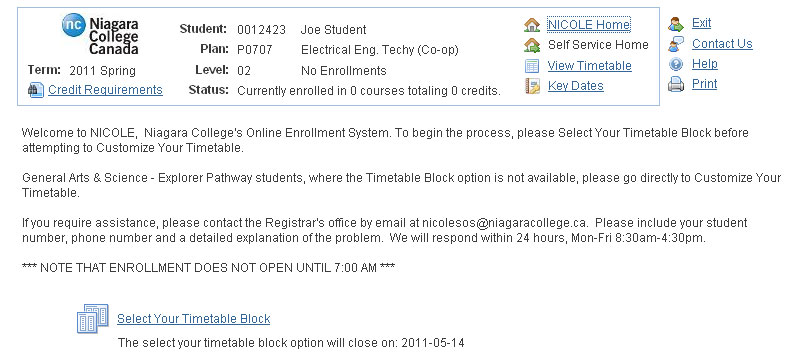
5) Select your timetable block using one of the options below.
Option 1:
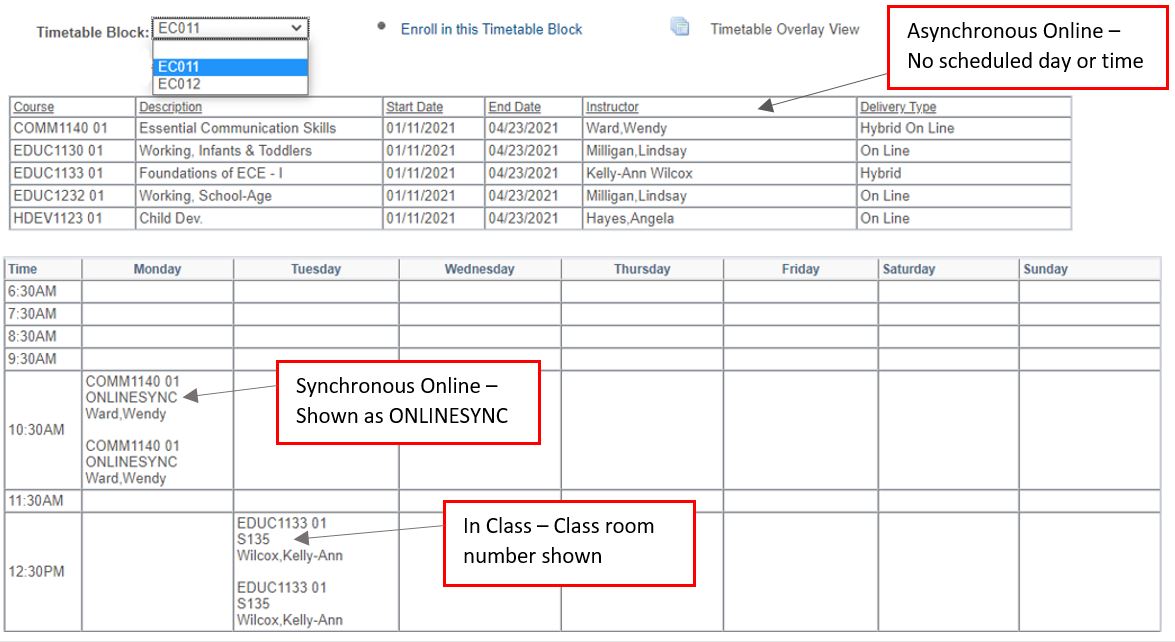
- Select a block from the drop down list.
- Courses delivered online that do not have a scheduled day or time (unless they are hybrid) will be shown in the 1st grid.
- In class or online courses that do have scheduled days and times will appear in the 2nd grid.
- Courses in the 2nd grid with day and times will have a classroom name or number if delivered in class or will show ONLINESYNC if delivery is synchronous online.
For more information about course delivery methods – see: niagaracollege.ca/enrolmentservices/registration/coursedelivery/.
Option 2:
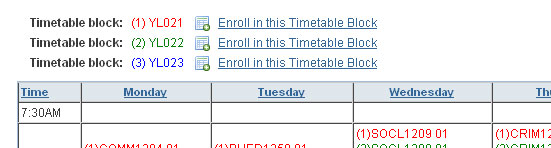
If your program has 6 or less timetable blocks, you may want to click on the “Timetable Overlay View” link.
This will display your various schedule options using colour groupings. This feature may not be useable for programs with more than six timetable blocks.
Any online courses that are not at scheduled days and times will not show in this view.
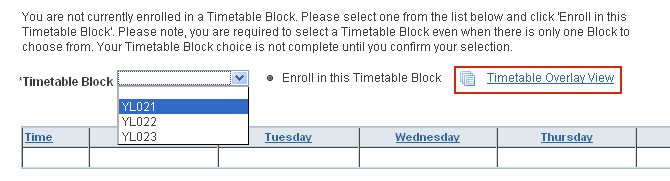
6) Click the “Enroll in this Timetable Block” link next to your timetable block of choice.