How-to: GPA Calculator
Introduction:
The GPA Calculator Tool is designed to help students accurately calculate their Program GPA and plan their academic progress. Whether you’re checking your current standing or exploring ways to improve your GPA, this tool provides a simple and effective way to stay on track.
In addition to calculating your Program GPA, the Targeted Grades section allows you to plan strategically. For example, if you’re considering retaking a course, you can use this feature to determine what grade you would need to achieve in order to meet your program’s GPA requirements.
Important: Only numeric grades should be entered into the calculator. Grades such as EX, U, S, AS, etc. (also known as alpha grades) should not be included, as they do not carry numeric value and will affect the accuracy of your results.
How to use the GPA (Grade Point Average) Calculator, step by step:
- Log in to MyNC and select Dashboard
- Under Student Resources, select the hyperlink “GPA Calculator“
- Read the instructions before proceeding – there is important information regarding weighted GPA calculations and repeat courses to assist you
- Open your Academic Advisement Report as a reference (located within the My Grades section on your MyNC Portal)
- Save your entries before navigating off the page
- If you choose, you may print your calculator to PDF or Excel to share with your Academic Advisor to assist with creating your study plan
1) Access MyNC and select Dashboard

2) Go to Student Resources
Select ‘GPA Calculator’

3) View instructions
Read all instructions before proceeding.
Note, there is important information regarding weighted GPA calculations and repeat courses.
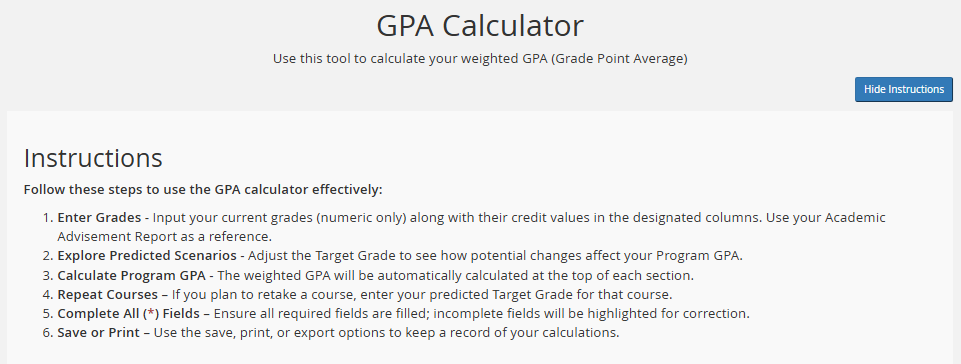
4) Open your Academic Advisement Report
Use your Academic Advisement Report (AAR) as a reference before entering course data into the calculator
- Your AAR is located within the My Grades section on your MyNC Portal
- Visit here for instructions on how to obtain your AAR
Note:
- Ensure there aren’t any spaces entered into the ‘Course’ field (eg. CULN1121)
- Input your current grades (numeric values only) along with their credit values into the ‘Actual Grades’ column as below
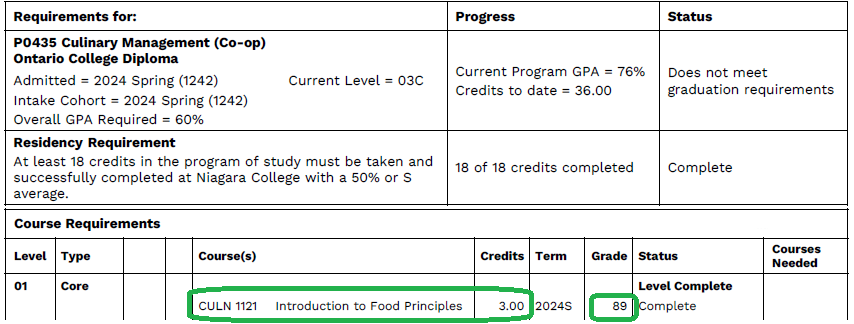

Tip: Use the buttons to add or remove entries as needed


Tip: you can find your required Program GPA at the top of your Academic Advisement Report

5) Save your entries
Select the “Save Entries” button at any time to log your entries for future use.
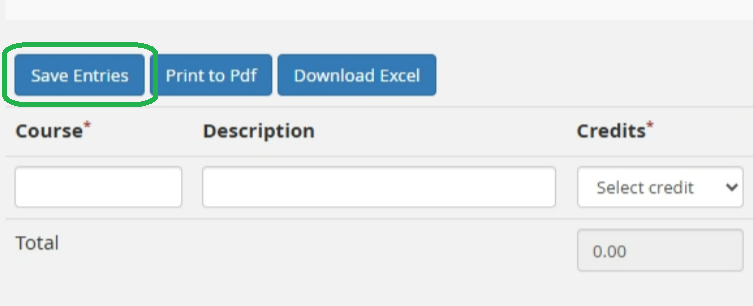
IMPORTANT: Save your entries before navigating off the calculator
5) Print to PDF and/or Download to Excel
Select the “Print to PDF” button to send your entries to a PDF file that can either be printed or emailed to your Academic Advisor to assist with creating your study plan.
Select the “Download Excel” button to send your entries to an Excel workbook (note, the formulas will not transfer to the Excel sheet. If you wish to make changes to your calculator, you will need to do so in the app, save, and then re-print to Excel).

No MyNC account?
If you do not have a MyNC account please email [email protected] for assistance.