Brightspace is Niagara College’s new LMS and marks a significant investment by NC to support the evolving teaching and learning needs of our students, faculty, and staff. You may be asking yourself: Okay, what is so special about Brightspace? There are many amazing features but at the CAE we are quite thrilled about Brightspace and all things accessibility. Are you wondering how you can use Brightspace to enhance your accessible practices? Well, worry not! All you need to do is keep reading. And hey, if not, keep reading anyway because accessibility is a shared responsibility from all of us at NC and we can all do our part to contribute to accessibility.
D2L’s Brightspace and Commitment to Accessibility
D2L is the software company that created Brightspace and D2L is committed to ensuring all their learning platforms are accessible. Accessibility in Brightspace is guided by current accessibility standards—WCAG 2.2—and at D2L, “accessibility is not merely a checklist; it is a commitment to empower and engage individuals in their learning goals” (Accessibility at D2L).
Wait, what’s WCAG?
If you have done any research on the accessibility of Brightspace or other websites, you will likely have come across the acronym WCAG, but what does this mean? Web Content Accessibility Guidelines is how we define accessible web content, which includes Brightspace as it is a web based platform. WCAG is set of criteria that websites must comply with to meet the standards of AODA (Accessibility for Ontarians with Disabilities Act). If you are interested in learning more, you can check out NC Accessibility Hub: WCAG 2.0 at a Glance. In October 2023, the latest version of Web Content Accessibility Guidelines was released – known as WCAG 2.2 – and Brightspace has demonstrated conformance with WCAG 2.2.
Leveraging Consistency in Navigation for Accessibility
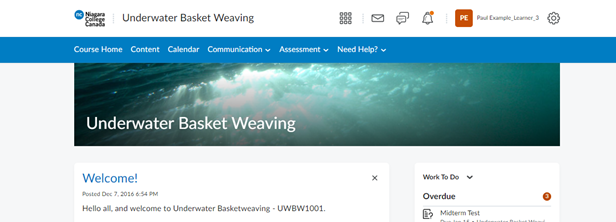
One of the most important principles guiding accessible online course design is consistency. Learners are better able to work within a course and find what they need when they’re working with a consistent structure. Having a simple and consistent course structure helps to let students know where they can find course materials easily from week to week. Within Brightspace, navigation tools have been designed to promote consistency across courses at Niagara College. For instance, every Brightspace course at Niagara College will have a consistent navigation bar so students know where they can access course content, assignments, quizzes, and more.
Accessibility Checker
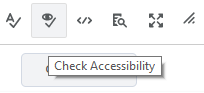
Perhaps the easiest thing to start with in Brightspace to ensure accessible practices is the Accessibility Checker. When you create or edit HTML content in Brightspace, you can use the accessibility checker to catch common accessibility issues. The checker is not just for creating content! It is available for widgets, quizzes, assignments, discussions, and any tool where a user is enabling and using the Brightspace editor tool. Although the checker does not replace real-users and may not catch all screen reader accessibility issues, it is a great first step and the checker will also make suggestions on helping you to fix these issues. Common errors (or inaccessible content) caught by the checker includes font sizes, contrast ratios, formatting, use of headers, and more!
Alternative Text
Alternative text (often referred to as alt text) is a description of the image on a screen that can be read by a screen reader to let the user know what is being shown. When adding images to Brightspace, we want to ensure that students who are using screen readers or have troubles with the interpretation of images do not lose out on the opportunity to gain learning from these images, and therefore alternative text is an important feature to incorporate. Luckily Brightspace reminds you every time that you incorporate an image in your content, making it easy to remember to add this feature.
That said, what makes alt text good? Alt text should be able to convey the importance of the image, being brief but also specific. Seems tricky? Check out some examples in the NC Accessibility Hub: Images and Icons article (and you even get a chance to see Sean Kennedy in action here!).
Font and Colour Contrast Ratios
Who doesn’t love a good rainbow? Colourful text can serve its purpose, but we need to remember that we don’t need to make our documents pretty to convey importance. In fact, colour should never be used to show importance (use bold instead). Using certain font colours not only gives us eye pain but can be un-readable for many individuals. Therefore, WCAG 2.0 includes suggested contrast ratios between the background colour and the font. These ratios for large text is 3:1 and for visual presentation is 4.5:1, but you don’t need to know that because Brightspace will do this for you! Brightspace offers a built-in colour checker and if you choose to change your font colour, the contrast ratio will be calculated and will indicate if you have met the requirements for contrast for best visibility.
Captioning in Brightspace
During our LMS review and consultation period, we at the CAE heard loud and clear from faculty and educators across NC who wanted more robust video and audio tools within our learning management system. We are very pleased that not only does Brightspace offer tools for in-platform video and audio recording, but it also provides auto-captioning to ensure accessibility! Whether you are adding a video announcement, providing audio feedback to an assignment, or providing video instructions for an assessment, Brightspace has all your captioning needs covered. Even better, the automated closed captions that are produced have a high level of accuracy. Brightspace will also auto-generate captions for video files that you upload to a course site.
Accessibility and Brightspace
Creating accessible teaching and learning environments for faculty and students is a collective and shared responsibility for all of us at NC. Focusing on accessibility and the removal of barriers is imperative if we are committed to equity and student learning. D2L’s Brightspace provides access to accessible tools and features that help us ensure that we are offering accessible teaching and learning environments to all our students.