Niagara College Employees Professional Development Calendar
Professional Development Calendar
We are excited to offer a variety of professional development (PD) opportunities for employees!
Frequently Asked Questions
Who is an Aspiring Leader?
An Aspiring Leader is anyone who is curious about leadership and/or wants to grow their ability to lead others – no matter what their current role is.
Other PD Opportunities
- Visit the EDI Events Calendar to register for learning opportunities related to equity, diversity, and inclusion.
Faculty Further Formal Education for the Purpose of Additional Progression Steps
Faculty interested in completing education that will lead to additional step progressions, should consult the Further Formal Education for the Purpose of Additional Progression Steps policy.

Opportunity Audiences
- Opportunities for different audiences are available in this calendar. By default, all audience types are selected and will appear in the schedule. Each audience type is colour-coded and indicated in the “Audience” column.
- You can control what types of opportunities appear by unchecking/checking audience types in the colour-coded bar. For example, to only show opportunities for People Managers, uncheck “All Employees” and leave “People Managers” checked.

Opportunity Details
- Click/tap the title of the opportunity you’re interested in, and more details will load.
- If the opportunity is virtual, the virtual meeting link will be available on the details page.
Registration
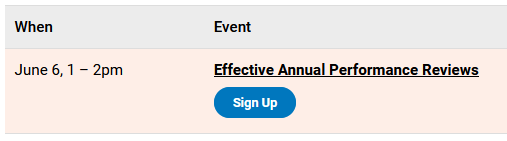
- Click/tap the blue “Sign Up” button on the schedule list or on the opportunity details list. A pop-up will open that will allow you to register for the opportunity.
- Many opportunities have a seat cap. If the seat cap has been reached a “Wait List” button will appear. Click/tap this button to sign up for the wait list. If a seat opens up, the event organizer will register you and you will receive an email notification.
Video: How to Register for a PD Session
- Click/tap the name of the course you’re interested in.
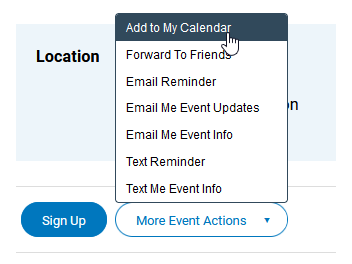
- Additional details about the course will load. Click/tap the “Add to my Calendar” option.
- On Desktop: Click the blue “Add to My Calendar” button below the location details.

- On Mobile: Tap “More Event Actions” below the location details, and then tap “Add to My Calendar” from the flyout menu.

- On Desktop: Click the blue “Add to My Calendar” button below the location details.
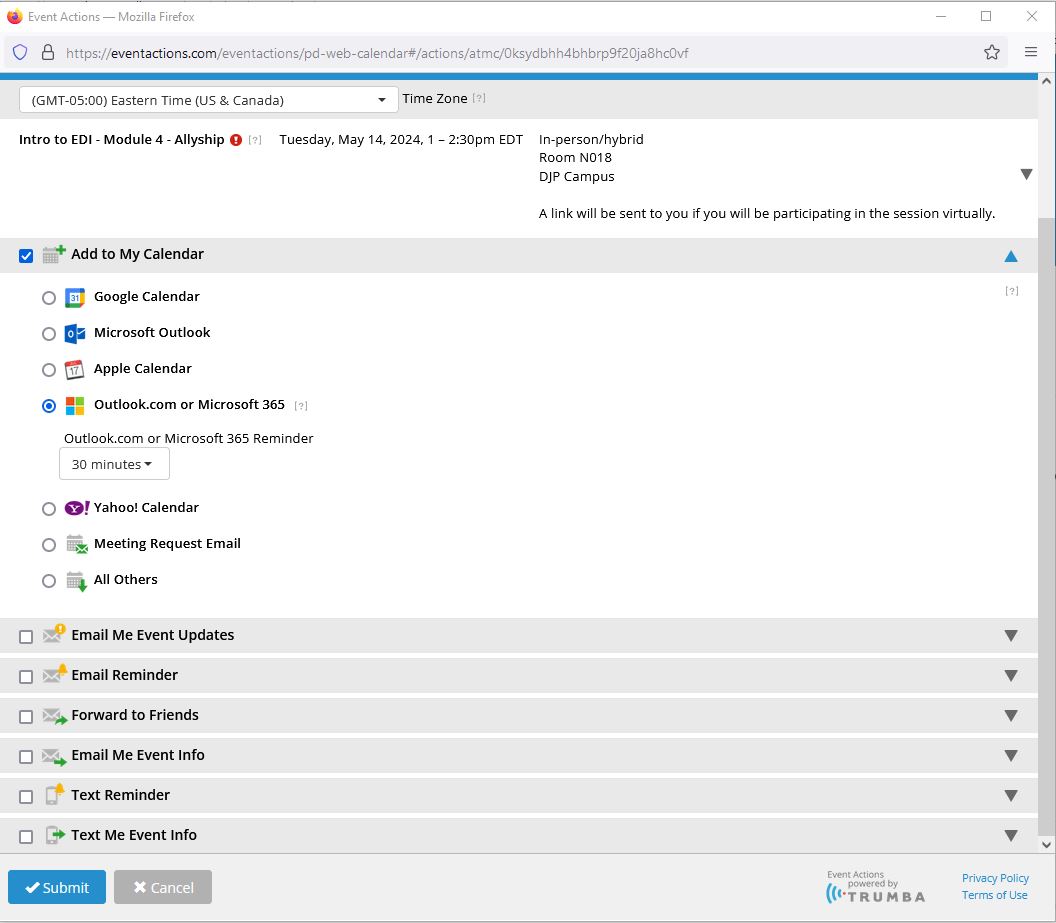
- In the window that pops up select the “Outlook.com or Microsoft 365” option under “Add to My Calendar” and then click the “Submit” button.

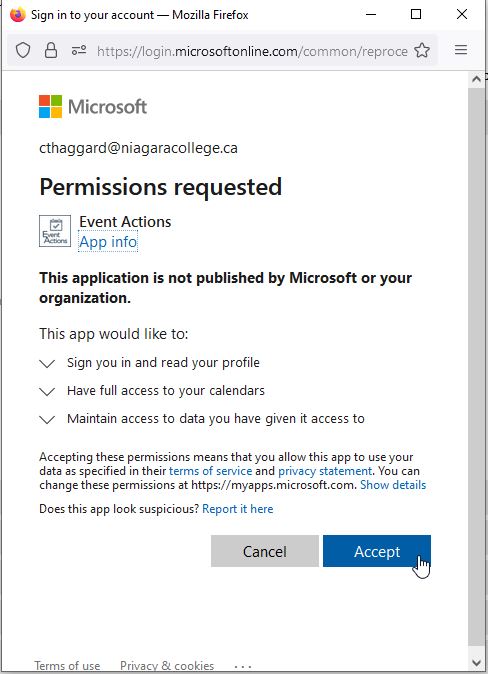
- Click or tap the “Accept” button to accept the permissions. You may need to sign in first using your NC username and password and proceed through your regular authentication steps in order for the permissions box to appear.

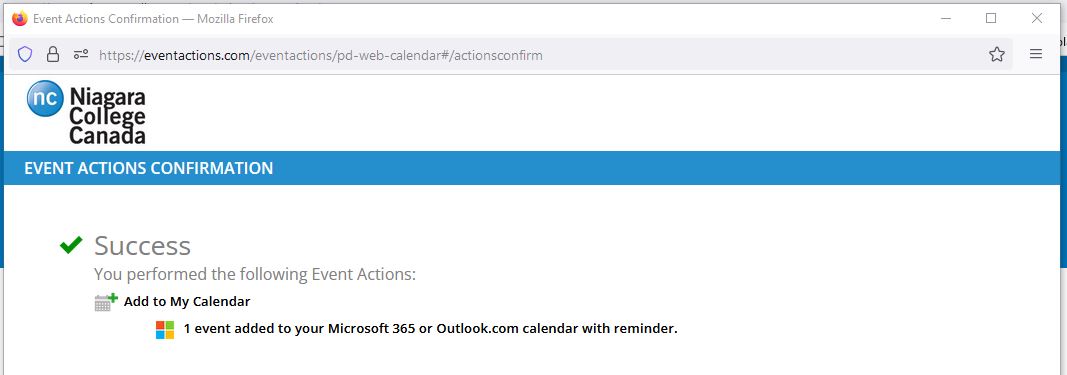
- A success message will appear. Within a few minutes, the event will appear in your calendar.

- On the event’s details page, click the “Permalink” link in the bottom right-hand corner.

- A small box will pop up with the event’s permanent link in it. Copy this link (right click > copy).
- Open a new browser tab and paste the link into the URL box, then press enter. The event’s detail page will load.
- You may bookmark this page, or paste the link into an email, Teams chat, social media and so on, if you wish to share the event with others.