

Faculty: Design, organize interactive content
A message from the Centre for Academic Excellence (with partner Information Technology Services):
The CAE is pleased to announce the addition of Creator+ and H5P authoring tools to Niagara College’s Brightspace environment as well as new Brightspace document page templates. These additions add a variety of easy-to-use tools that will allow faculty to better organize, design, style, and customize their content, as well as providing many new ways to make it more dynamic and engaging for students.
Creator+ and H5P
Together, Creator+ and H5P offer faculty a range of tools for designing and organizing more interactive content, including:
- Callouts, jumbotrons, and stylized quotes to highlight important concepts, definitions, or information
- Inline questions to easily add formative assessment into course content
- Tabs and accordions to organize lists, processes, or comparisons
- Flip cards, click and reveals, and hotspots to increase interactivity and engagement
- Layouts to structure and organize course content
- Interactive presentations, branching scenarios, and augmented videos to make course content more interactive
- Word searches, memory games, and guess the answer to gamify student learning
These new tools are now available in Brightspace through the content creation interface and the text editor. If you would like to explore the new tool options, you can review these resources on working with the new tools.
The CAE will also be building new resources and running training opportunities leading up to the Spring 2025 semester. Additional details will be sent out via email soon.
New Templates
Along with the Creator+ and H5P tools, the CAE is also pleased to launch newly designed templates sharing content in Brightspace. These include easily selectable document templates as well as some elements not available in Creator+. These templates adhere to Niagara College branding standards and are an opportunity to easily and effectively arrange and design consistent and easily navigable course content. Information on starting to work with the templates can be found in the Brightspace Training Resources.
Newly created Brightspace courses will now automatically use the new document page templates. If you have been using and need access to the original document template pages, please email the CAE at [email protected]. Additional details on CAE webinars and other training resources for document page templates will be sent soon.
Location
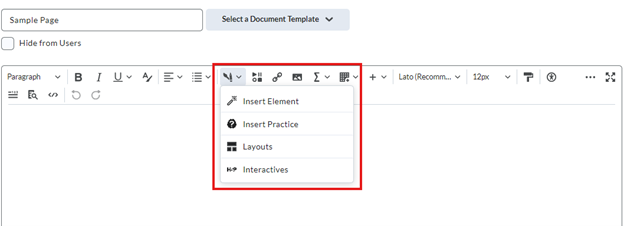
The new Creator+ and H5P tools will be available in the text editor associated with the Create a File function in Brightspace courses.
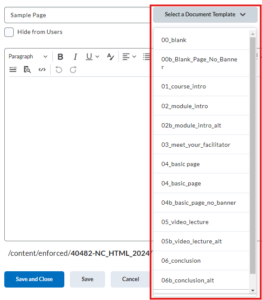
The new templates will also be associated with the text editor, and will be available through the drop-down for selecting document templates.
Sample tools
Creator+ and H5P offer a variety of tools to engage students and make content interactive. Below are a few examples as well as some things you might do with them.
Accordions
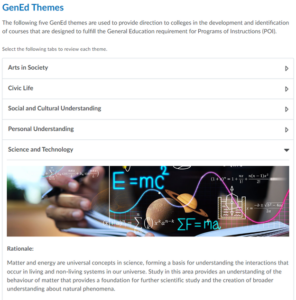
Accordions are an easy way to group content into drop-downs and to add interactivity to content. They are an excellent option for faculty who want to:
- Present a list of related items with some information about each one
- Show information in an organized and ordered way that supports student focus.
Tabs
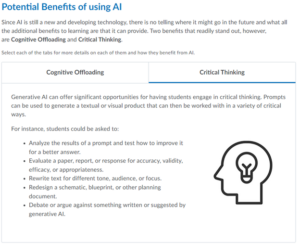

Tabs can help to break complex topics into more approachable segments and adds a layer of interactivity to course content. This tool can help faculty to:
- Break down a lot of detailed information into distinct but related components
- Walk students through the steps of a sequence or process.
Practice Questions
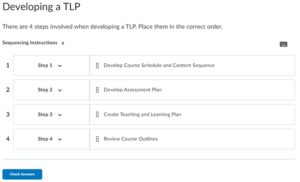
Practice questions can be inserted directly in course content. Question types include multiple-choice, true or false, multi-select, sequencing, fill in the blanks, and sorting. These practice options can be used to:
- Give students a timely chance to self-check their knowledge in the moment
- Provide faculty an opportunity to formatively assess student learning.
Flip Cards
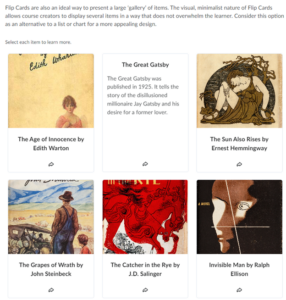
Flip Cards can be used to share a collection of items that don’t necessarily have a strict structure in their relationship to one another. Images can be included on cards and are a good way to:
- Have students test their knowledge on different aspects of a topic before flipping the cards over
- Associate different pieces of information, such as terms and definitions
