Students
- Log in to MyNC.
- Within the My Student Record section, choose Manage Profile.
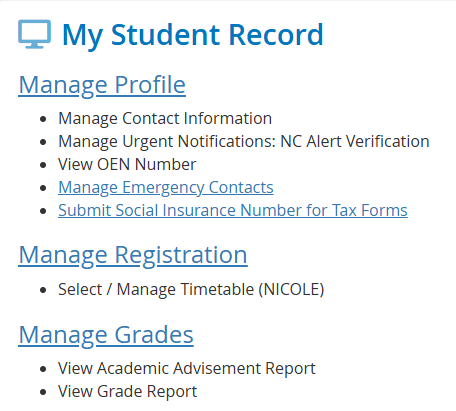
- Scroll all the way down to the bottom of the page and look for the Urgent Notifications: NC Alert Verification section.
- Fill in the fields provided, depending on which type of alert(s) you would like to receive. The options include a Voice Call Phone Number, a Text Message Mobile Phone Number, and a Personal E-mail Address. A preview of the form can be found below.

Remember, you do not need to include your Niagara College email address; alerts will be sent to your NC email address automatically. - Check the “I consent to NCAlert Emergency Alerts” box.
- Click the Save button.
- You’re done!
You can return to the above page at any time to change your settings.
- Download and install the NC Mobile app.
- Log into the app using your NC student credentials.
- Open the app menu by tapping the hamburger icon
 , then tap Profile.
 - On the Profile screen, fill in the fields provided depending on which type of alert(s) you would like to receive. The options include a Voice Call Phone Number, a Text Message Mobile Phone Number, and a Personal E-mail Address. A preview of the screen can be found below.
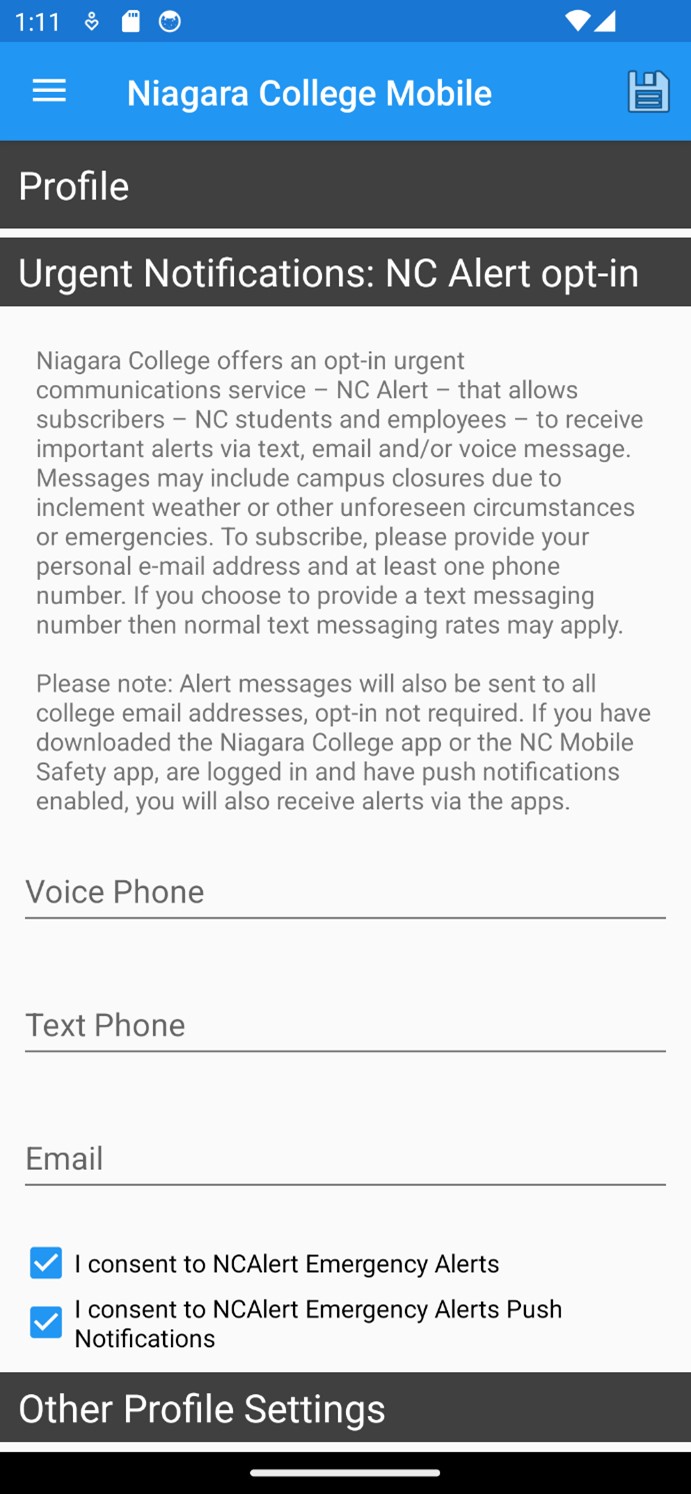
Remember, you do not need to include your Niagara College email address; alerts will be sent to your NC email address automatically. - If you want to receive push notifications (pop up notifications on your phone), check the “I consent to NCAlert Emergency Alerts Push Notifications” box. Be sure to select “Allow” when prompted by your device to give the app permission to send notifications. This may pop up immediately or when you log into the app next time. You can also manage permission settings from the Android or iOS permissions settings areas on your device.
- Check the “I consent to NCAlert Emergency Alerts” box.
- You’re done!
- Please note that you will only receive push notifications if you remain logged into the app. Closing the app will not log you out.
You can return to the above menu in the app at any time to change your settings.